
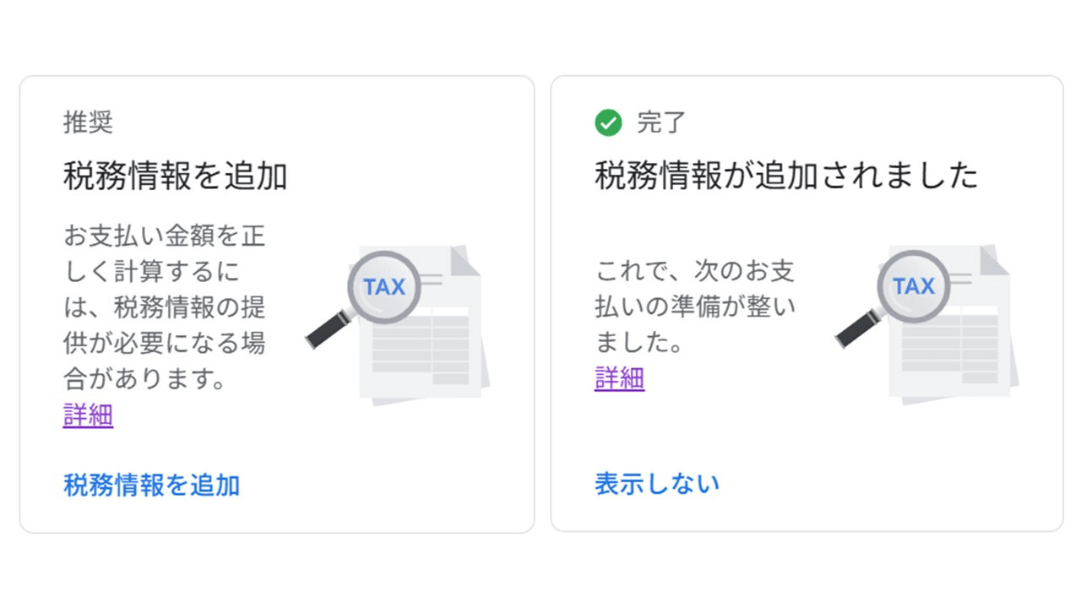
Add Tax Information in Google AdSense
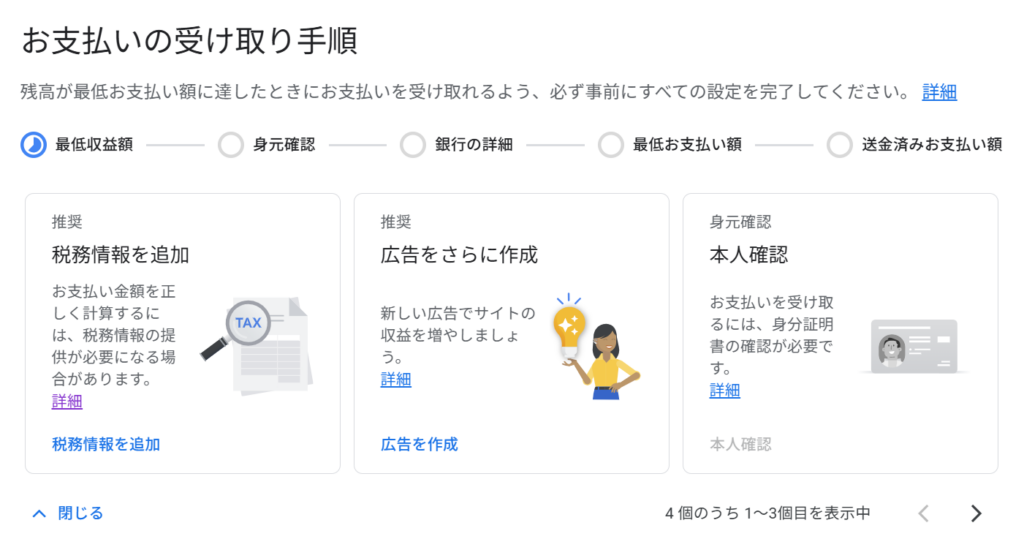
If you run a blog and have been approved for Google AdSense, you are required to complete the U.S. tax information registration process in order to receive advertising revenue payments.
This post summarizes the Google AdSense U.S. tax information registration process for users who meet the following conditions:
・Living in Japan and paying taxes there
・Not a U.S. citizen or U.S. permanent resident
・Not operating a business or having a permanent establishment (PE) in the United States
・Receiving advertising revenue through Google AdSense
In this post, I explain why U.S. tax information registration is required for Google AdSense, the required form (W-8BEN), and the actual registration process step by step.
Why You Need to Register U.S. Tax Information
Because Google AdSense is a service operated by Google, a U.S.-based company, tax identity verification is required under U.S. tax law even for payments made to non-U.S. residents. Therefore, even if you live in Japan and do not actually operate a business or work in the United States, registering U.S. tax information is mandatory in order to receive AdSense revenue.
If this process is not completed, payments may be put on hold, or the default U.S. withholding tax rate (30%) may be applied.
In other words, registering U.S. tax information is not a procedure to pay more taxes, but a necessary step to avoid unnecessary withholding and to receive your revenue properly.
What Is W-8BEN?
W-8BEN is a form used by individuals who are not U.S. citizens or permanent residents to certify their foreign status for U.S.-source income and to claim benefits under an applicable tax treaty.
By submitting this form, you officially notify the U.S. authorities that:
・You are not a U.S. citizen or a U.S. permanent resident
・You are classified as a non-U.S. person under U.S. tax law
・You are requesting the application of a tax treaty between the United States and your country of residence for the relevant income
For non-U.S. individuals living in Japan, submitting Form W-8BEN allows a 0% U.S. withholding tax rate to be applied to service income such as Google AdSense revenue, provided that the individual does not have a permanent establishment (PE) in the United States.
Therefore, W-8BEN is best understood as a standard tax form for individuals who receive U.S.-source income but are not considered U.S. taxpayers.
How to Register U.S. Tax Information for Google AdSense
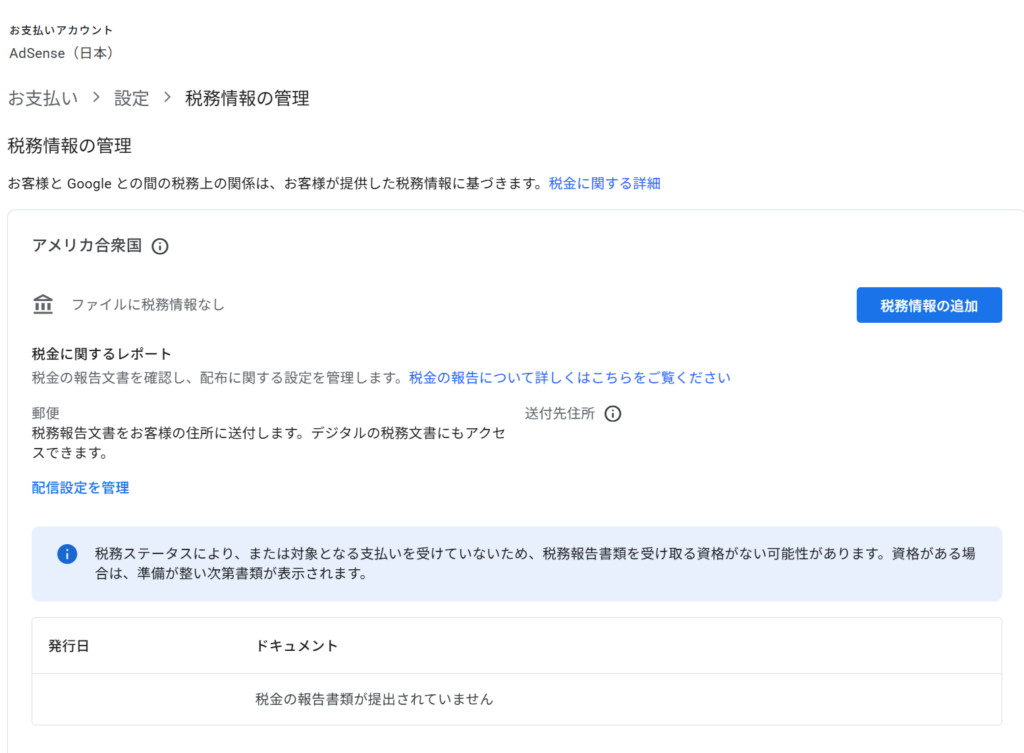
1. Click the Add Tax Information button
Click the blue button labeled Add tax information in the upper-right corner of the screen.
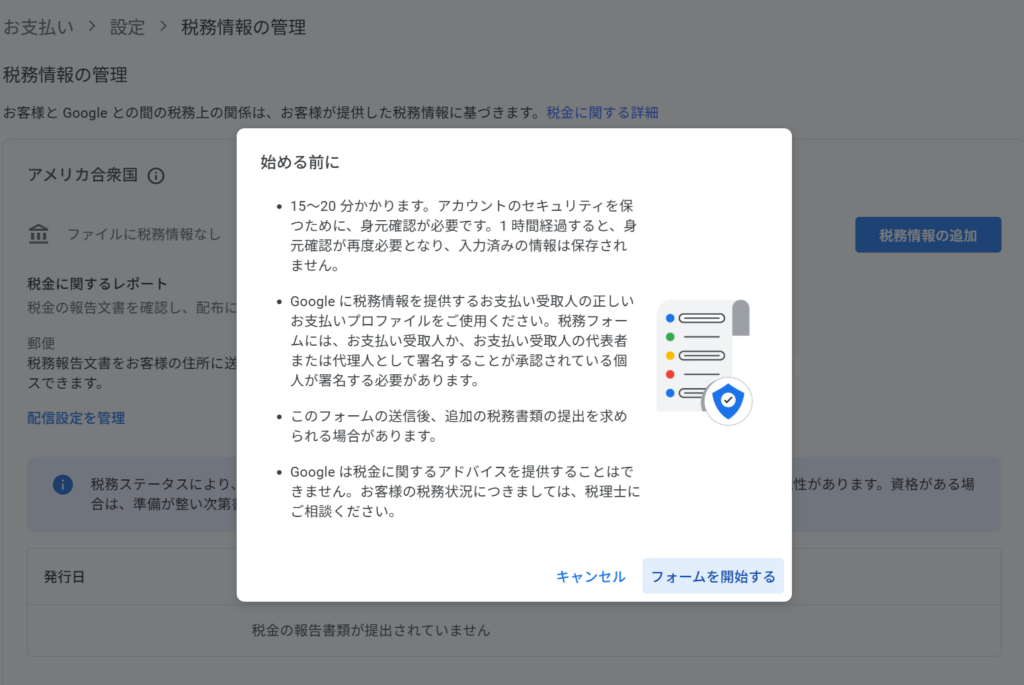
2. Click the Start the form button and complete identity verification
The registration process takes approximately 15–20 minutes, and you should have your My Number card ready in advance for taxpayer identification number registration.
When you click the Start the form button, a new screen will open and you will be asked to sign in once again.
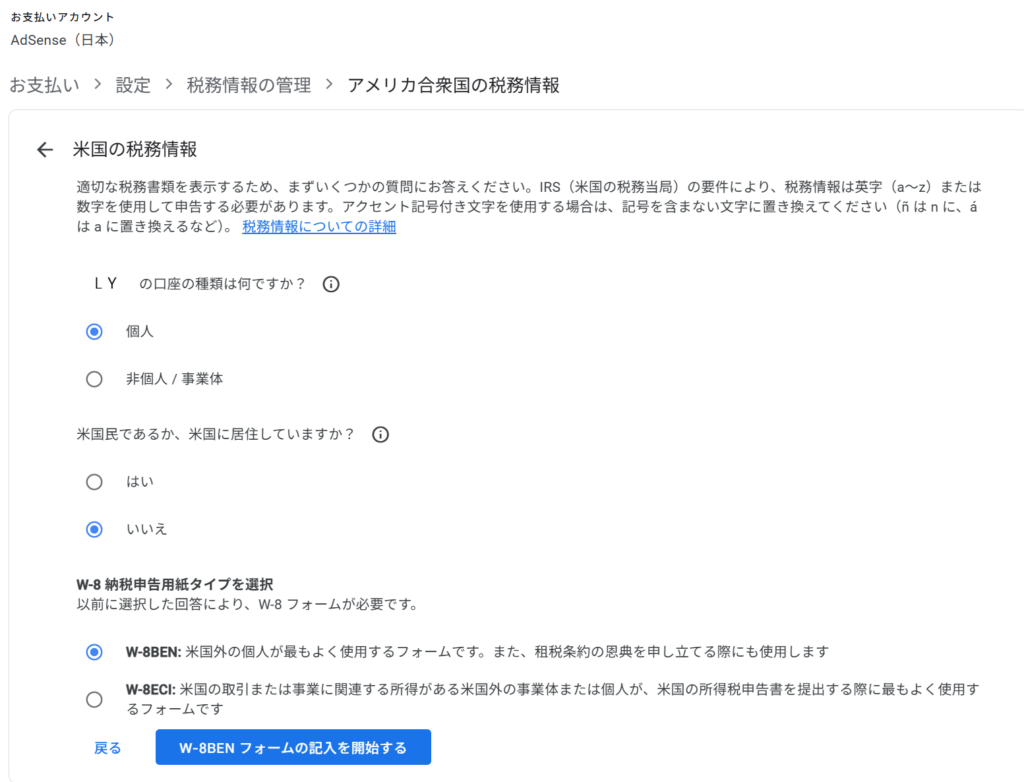
3. Select U.S. tax information options
Select the following options:
・Account type: Individual
・U.S. person status under U.S. tax law: No
・W-8 tax form type: W-8BEN
After making your selections, click Start filling out the W-8BEN form.
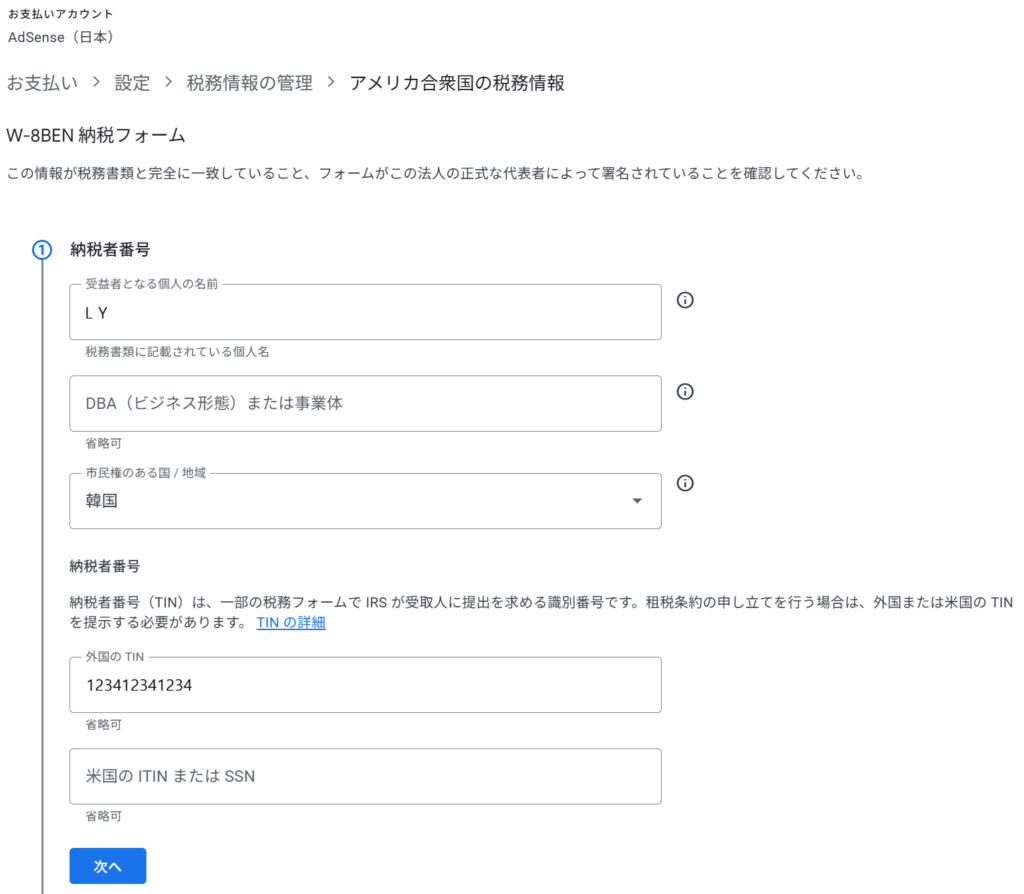
4. ①Enter taxpayer information
Check or enter the following information:
・Individual name of the beneficial owner: The name registered to your Google account will be displayed automatically.
・Country of citizenship: Select the country of which you are a citizen. In my case, I selected South Korea.
・Taxpayer identification number Foreign TIN: Enter your 12-digit My Number, then click Next.
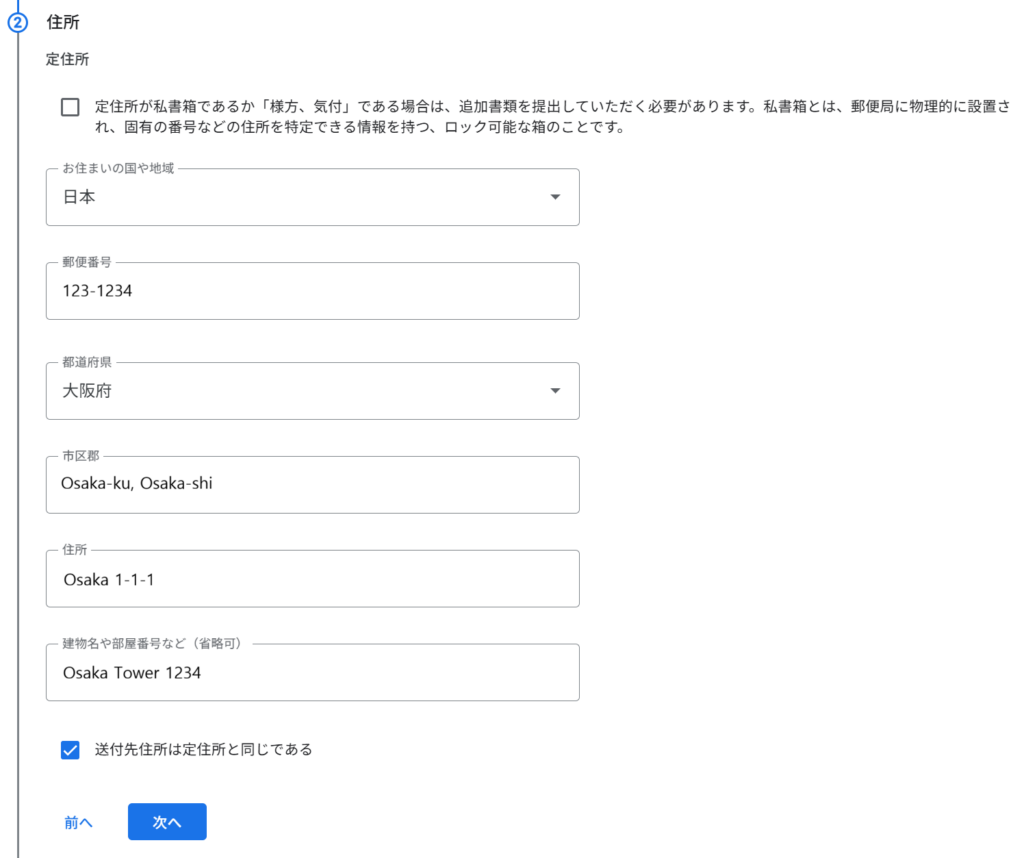
5. ②Address
Check the PO Box checkbox only if you use a post office box.
When you enter your postal code, the prefecture information will be filled in automatically.
From the city/ward level onward, including the street address, building name, and room number, the address must be entered using English letters and numbers only.
If the mailing address is the same as the registered address, check the corresponding checkbox. If the mailing address is different, please enter it separately.
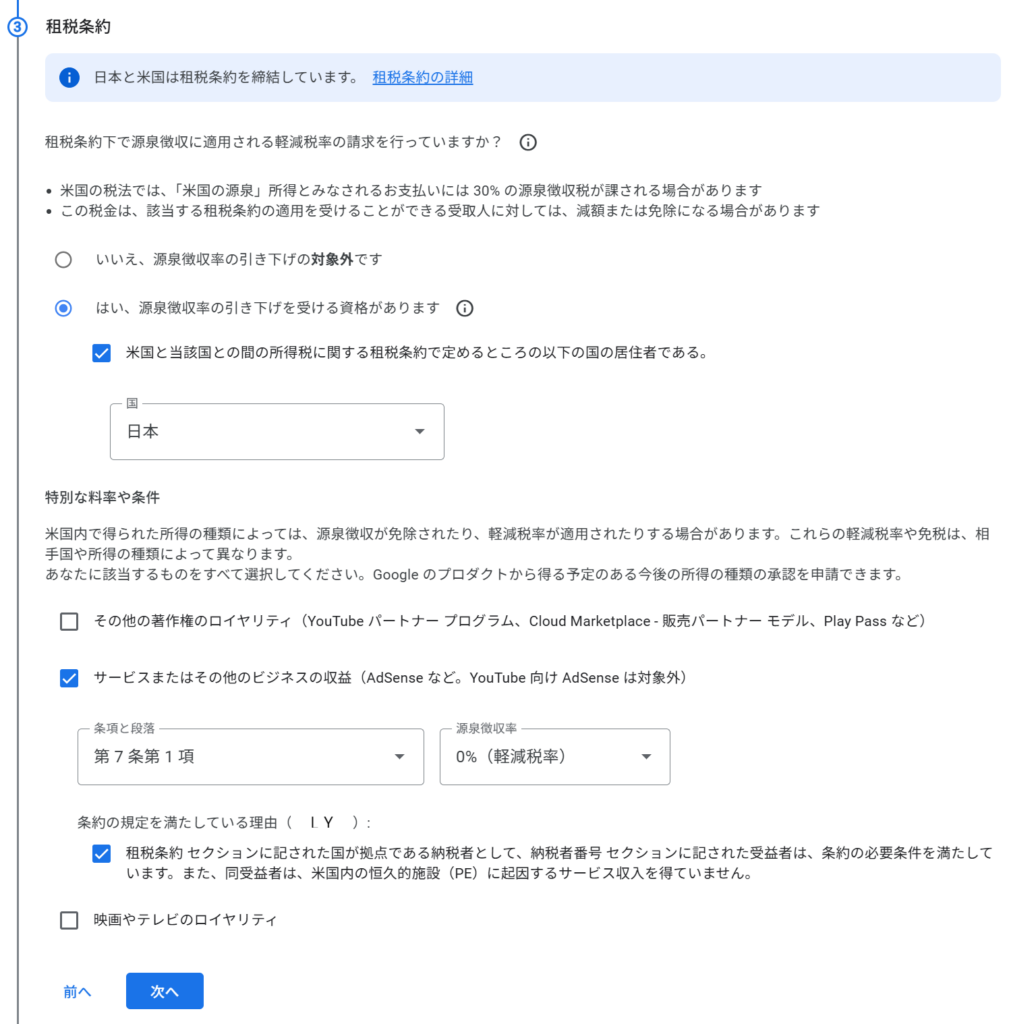
6. ③Tax treaty
・Are you claiming a reduced rate of withholding under a tax treaty?
Select Yes, I am eligible for a reduced withholding rate.
Check that you are a resident of a country that has a tax treaty with the United States, and select Japan.
・Under Special rates and conditions
Select “Services or other business income (such as AdSense; excluding AdSense for YouTube)”.
Select Article 7, Paragraph 1, and choose a 0% withholding tax rate.
Check the confirmation checkbox stating the reason you meet the treaty conditions.
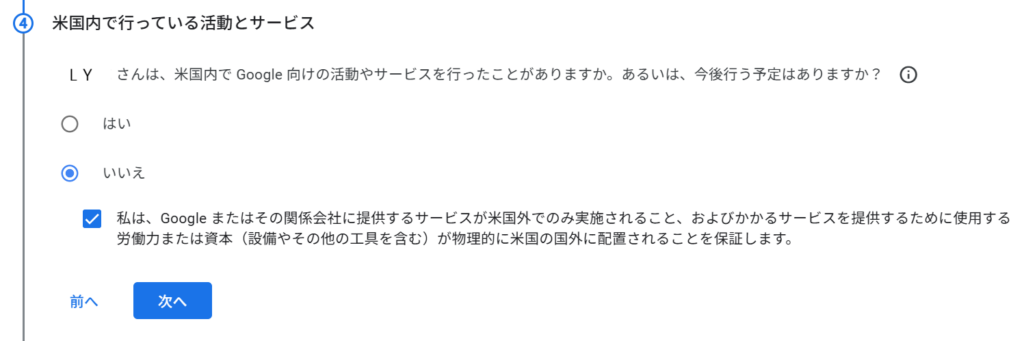
7. ④Activities and services performed in the United States
This section asks whether you are currently performing, or plan to perform, activities or services for Google within the United States.
Since this does not apply, select No, check the confirmation statement below, and then click Next.
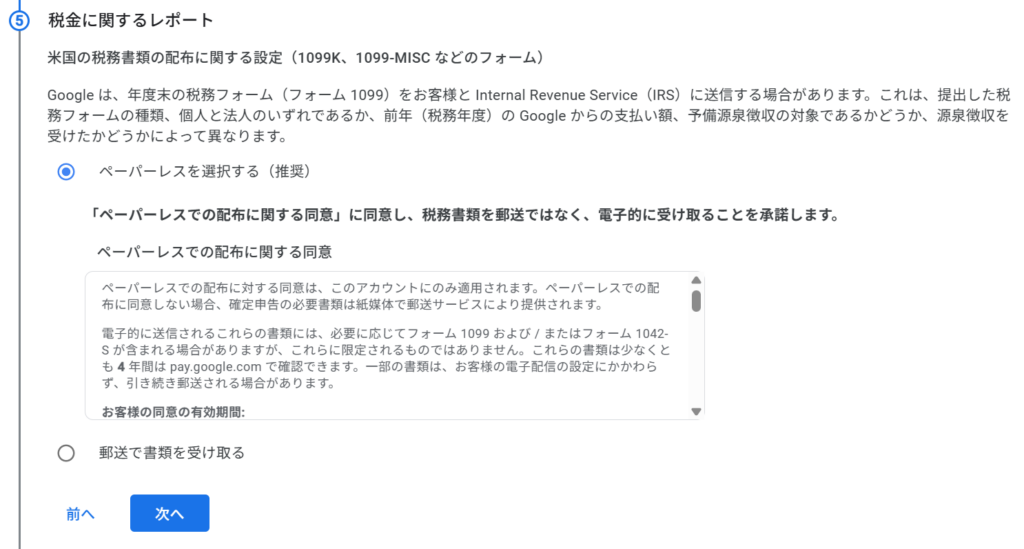
8. ⑤Tax reports
This section allows you to choose how U.S. tax documents will be delivered: either paperless (electronic delivery) or postal mail.
Since mailed documents may be delayed or lost, I chose the paperless option.
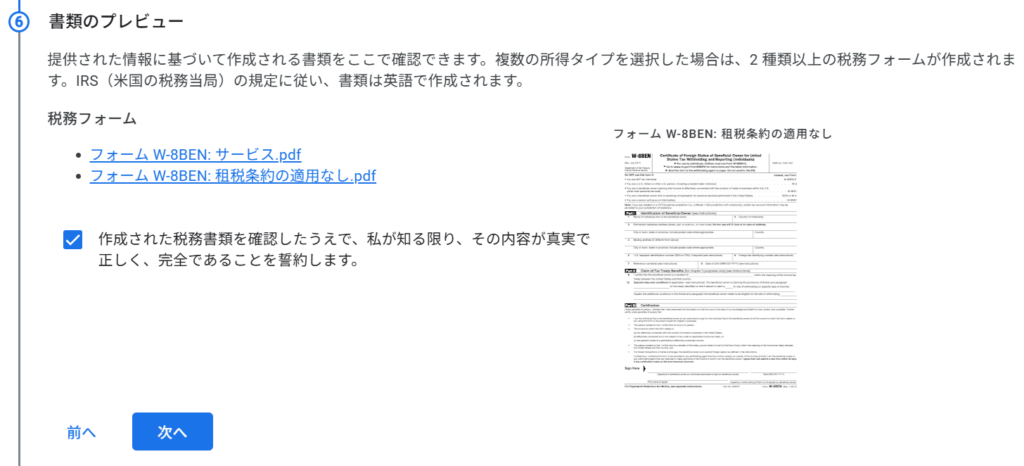
9. ⑥Document preview
You can review the tax document generated based on the information you entered.
After checking the statement confirming that the information provided is
true, correct, and complete, click Next.
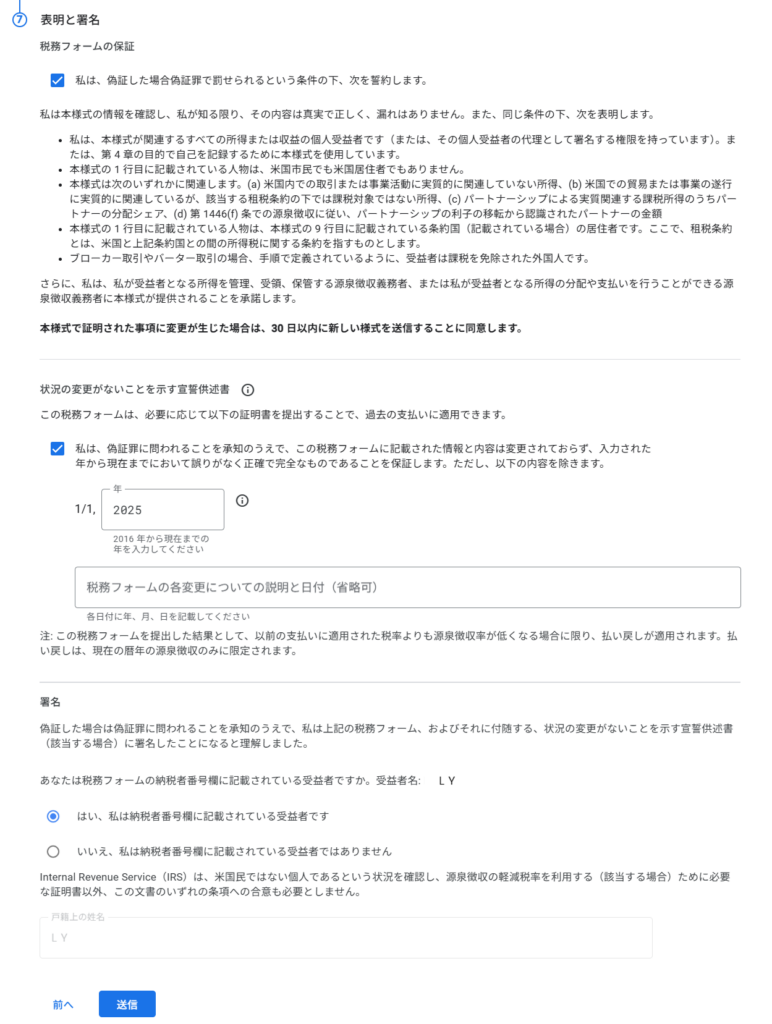
10. ⑦Representations and signature
・Certification of the tax form
Check the statement certifying that, under penalty of perjury, the information provided is true and correct.
・Affidavit confirming no change in circumstances
Check the statement confirming that the information and content provided in this tax form have not changed since the year entered, and that they are accurate and complete.
Enter the current year in the year field.
・Signature
Select “Yes, I am the beneficial owner listed in the taxpayer identification number section.”
・After reviewing all information, click Submit.
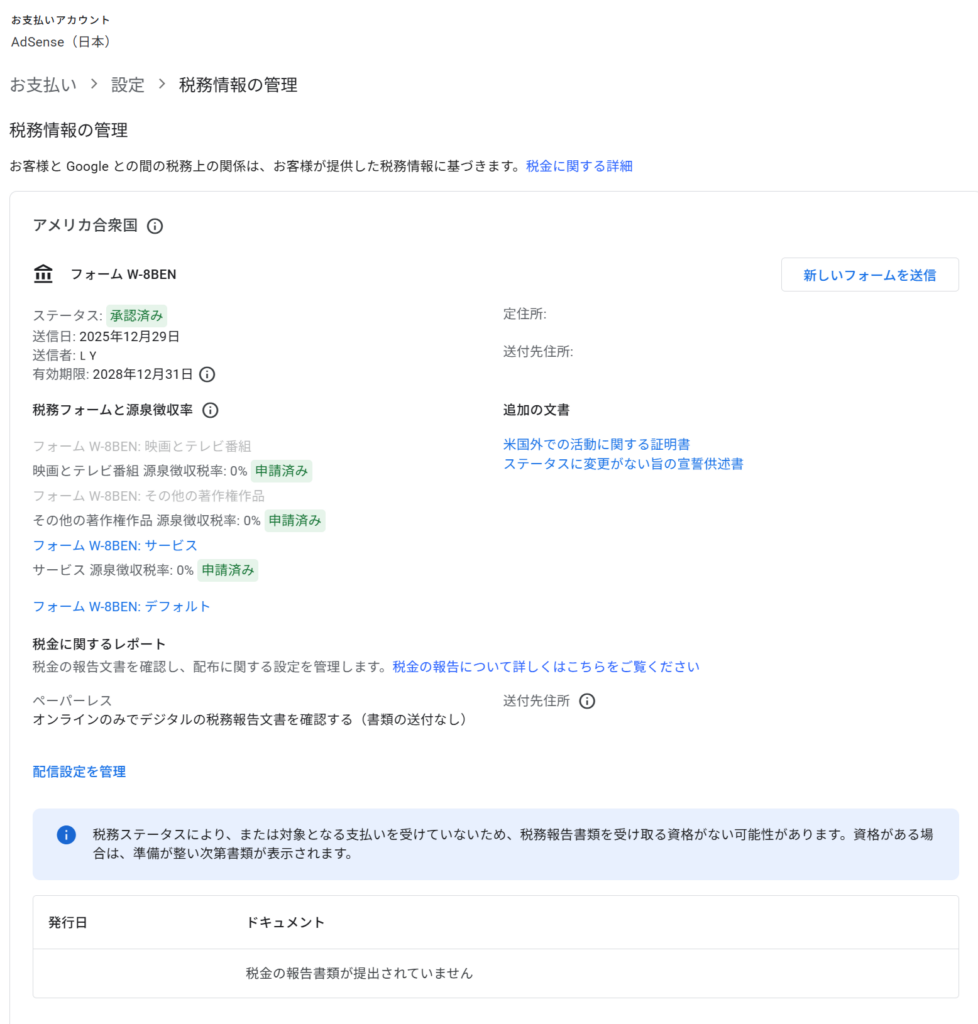
11. Confirm your Google AdSense tax information status
You can confirm that all items are marked as Approved or Submitted, indicating that the registration has been completed successfully.
You can also verify that the withholding tax rate is set to 0%.
Please note that Form W-8BEN is valid for three years, and no re-submission is required until it expires.
■Submitting U.S. Tax Information to Google



Comments